How to make your phone battery last longer every day
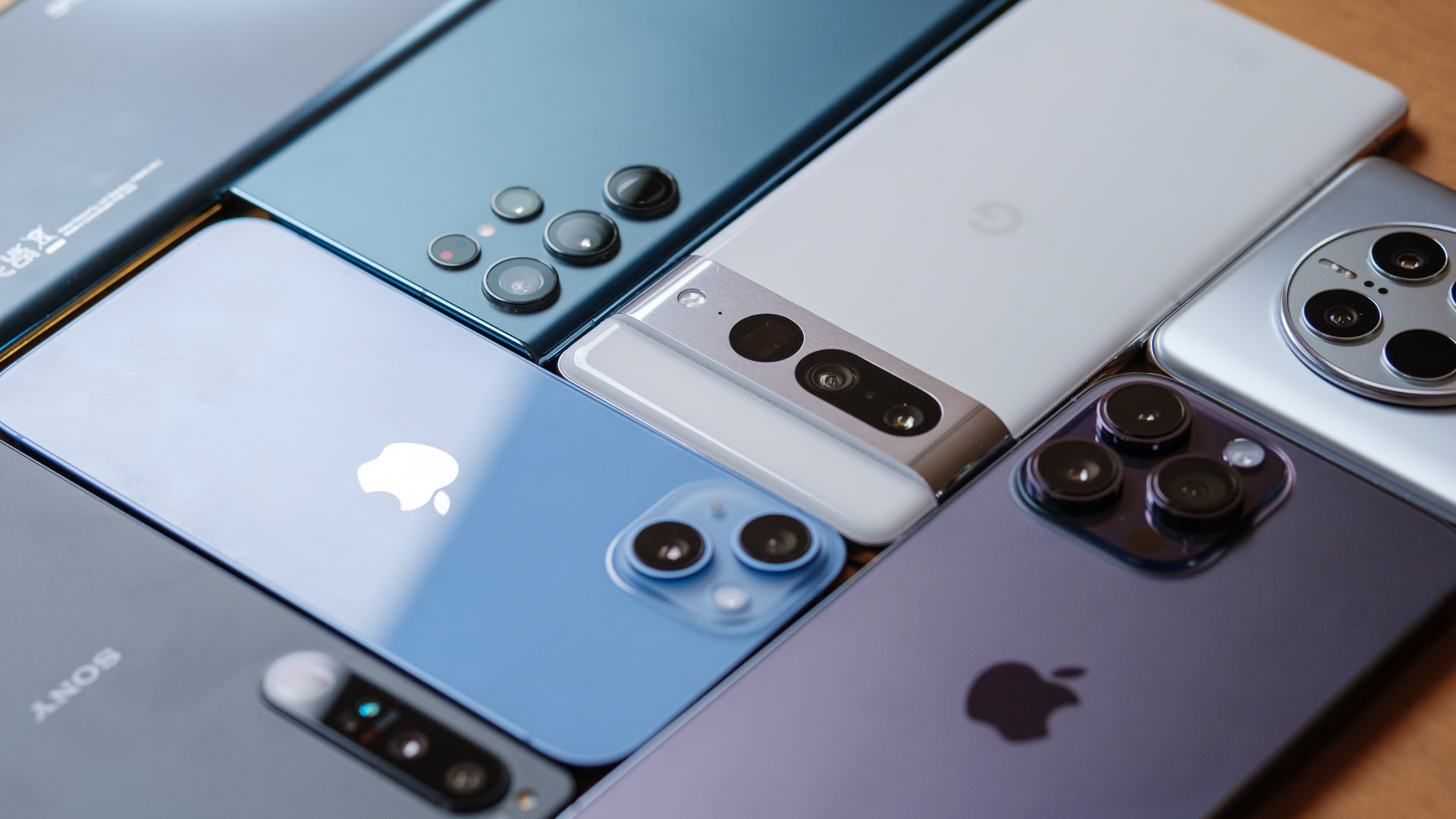
Your phone battery always seems to die right when you need it most. It is frustrating to see that red bar at dinner when you started the day with a full charge. You can make your phone battery last longer by changing just a few simple settings right now.
The best way to save power is to lower your screen brightness and turn off apps that run in the background. Most phones waste energy on things you do not even see or use. If you follow these steps, you can often get an extra three or four hours of life out of a single charge.
Lower your screen brightness and timeout
The screen is usually the biggest power hog on any device. Every time those pixels light up, they drink from your battery. If your screen is at 100 percent brightness all day, you are wasting half your power on light you do not need. Most people keep their screens much brighter than necessary while sitting indoors.
Open your Settings app and look for Display. Drag the brightness slider to the left until it is just bright enough to read comfortably. You should also turn on Auto-Brightness or Adaptive Brightness. This feature uses a tiny sensor to see how much light is in the room. It turns the screen down in the dark and up in the sun so you do not have to fiddle with it.
While you are in the Display menu, look for Screen Timeout or Auto-lock. Set this to 30 seconds or one minute. My friend Sarah used to leave her phone on the table with the screen glowing for five minutes after every text. Her battery was dead by noon every single day. Once she changed this to 30 seconds, she started making it until bedtime without a charger.
If you have a newer phone with an OLED screen, use Dark Mode. This makes the background of your menus black instead of white. On these screens, a black pixel is actually turned off, which uses zero power. It is a very easy way to improve your phone battery life without changing how you use your apps.

Stop apps from working behind your back
Apps love to talk to the internet even when you are not using them. They check for new emails, fetch weather updates, or track your location. This is called Background App Refresh or Background Data. While it sounds helpful, having fifty apps doing this at once will kill your battery fast.
On an iPhone, go to Settings, then General, then Background App Refresh. You can turn this off for everything, or just for apps that do not need it. Does your favorite game really need to update itself while it is closed? Probably not. Keep it on for things like Maps or your email, but turn it off for everything else.
On Android, go to Settings and then Apps. Tap on an app you do not use often and look for Battery or Mobile Data. You can choose to restrict background activity here. This keeps the app quiet until you actually open it. It is like putting a dog in a kennel so it stops running around the house and getting tired.
You should also look at your location settings. Many apps ask to know where you are all the time. This uses the GPS chip, which is very hard on the battery. Change these settings to "While Using the App" so the GPS only turns on when you actually need a map or a local weather report. This is a core part of computer security and power saving combined.
Check which apps are the biggest killers
Your phone actually keeps a list of every app and how much power it uses. This is the best place to find the "vampire" apps that are sucking the life out of your device. I check this list once a month to see if a new app is acting up.
Go to Settings and tap on Battery. Wait a few seconds for the list to load. You will see a percentage next to each app name. If you see a social media app using 25 percent of your battery but you only used it for ten minutes, that app is a problem. You might want to delete it and use the website version in your browser instead.
Sometimes an app gets "stuck" in a loop and uses way too much power. If you see an app at the top of the list that you barely touched, try restarting your phone. A simple restart clears out the memory and stops any glitchy apps from running. I try to restart my smartphone at least once a week to keep things fresh.
You can also find more tips for saving battery power by looking at the suggestions your phone gives you in this menu. Most phones will tell you exactly what to do, like turning off high refresh rates or lowering the resolution. Listen to those tips because the phone knows its own hardware best.
Manage your wireless connections
Your phone is constantly searching for signals. It looks for Wi-Fi, Bluetooth, and cellular towers. If you are in an area with a very weak signal, your phone will work extra hard to stay connected. This generates heat and uses a lot of power very quickly.
If you are in a place with no service, like a basement or a remote hiking trail, turn on Airplane Mode. Your phone will stop hunting for a tower that isn't there. If you don't do this, you might lose 20 percent of your battery in just one hour of searching. You can still turn Wi-Fi back on while in Airplane Mode if there is a local network available.
Wi-Fi actually uses less power than cellular data. When you are at home or work, make sure you are connected to a strong Wi-Fi signal. It takes less energy for the phone to talk to a router ten feet away than to a tower three miles away. However, if you are walking around town, turn Wi-Fi off. Otherwise, your phone will constantly "shout" at every public hotspot you pass, trying to connect.
Bluetooth is much better than it used to be, but it still uses some power. If you aren't wearing a smartwatch or using wireless headphones, you can toggle Bluetooth off in the quick settings menu. Every little bit adds up when you are trying to make it through a long day.
Use Low Power Mode early
Most people wait until their phone hits 10 percent to turn on Low Power Mode. By then, it is often too late to save the day. If you know you will be away from a charger for a long time, turn this mode on when you hit 50 percent or even earlier.
Low Power Mode (or Battery Saver on Android) does several things at once. It lowers brightness, stops background syncing, and slows down the processor slightly. You might notice that your phone feels a tiny bit slower, but it will last much longer. It is a fair trade when you are traveling or out with friends.
On an iPhone, you can add a button for this to your Control Center. Go to Settings, then Control Center, and tap the green plus sign next to Low Power Mode. Now you can just swipe down and tap the battery icon whenever you feel like you need a boost. It is the fastest way to change your phone's behavior without digging through menus.
Android phones often have an "Extreme Battery Saver" mode too. This turns off almost everything except for calls and texts. This is great for emergencies or when you are camping. My brother used this during a power outage and his phone stayed alive for three full days. It turns your smart device back into a basic phone, but that is better than a dead brick.
Keep your phone cool and updated
Heat is the silent killer of batteries. If your phone gets too hot, the chemical reactions inside the battery become less efficient. This causes the power to drain faster and can even damage the battery permanently over time. Never leave your phone on a hot car dashboard in the summer.
If your phone feels hot while charging, take the case off. Some cases trap heat like a thick winter coat. Also, try not to play heavy games while the phone is plugged in. This creates "double heat" from both the battery charging and the processor working hard. It is a quick way to age your battery by months in just a few weeks.
Finally, keep your software updated. Companies like Apple and Google often find ways to make their software use less power. They send these improvements out in system updates. Go to Settings, then System Update or Software Update, and make sure you are running the latest version. It might seem like a chore, but those updates often include fixes for bugs that were draining your power.
Taking care of your battery is about small habits. You do not have to do every single thing on this list to see a difference. Just picking two or three will help you stop worrying about finding a wall outlet before dinner time. Which one of these settings will you change on your phone today?